Introduction
Windows quality update policies, a relative new type of policy type you can configure in Microsoft Intune give us additional control over which Windows Quality Updates are approved and when they become available to our devices. We can automatically approve monthly security updates, require manual approval for preview or out-of-band updates, and configure hotpatch for specific device groups. If you already use Windows Update rings, these policies work alongside them: the quality update policy controls approvals and Quality Update deferrals, while the update ring settings for deadlines, grace periods and restart notifications remain relevant.

The Quality updates overview in Microsoft Intune. Under Create, we can choose a Windows quality update policy or an Expedite policy.
Personally, I think this functionality is interesting if you want more control over the approval of different update types, or want to move your deployment schedule from update ring deferrals to cloud-based policies. It also introduces some decisions which we didn’t have to make with update rings alone. Especially when selecting manual approval, we need to understand what somebody must do before devices receive an update. A separate quality update policy remains optional if your existing update rings already meet your monthly servicing requirements.
In March 2021, I published the blogpost Configuring Windows Update for Business settings for your Microsoft Endpoint Manager managed Modern Workplace. In December 2023, I followed up with Configuring even better Windows Update for Business settings for your Microsoft Intune managed Modern Workplace, describing modifications based on customer feedback, new functionality and changes to Microsoft’s recommendations.
Those articles covered update rings, but also power settings, end-user notifications, security baseline modifications, Delivery Optimization, restartable applications and reporting. All these components are still relevant. The goal of this blogpost is to explain what the additional quality update settings do, how they influence our existing configuration, and which settings I would use. For context, I advise you to read the previous articles as well.
An important change if you already use deployment rings: a cloud quality update policy takes precedence over the Quality Update deferral in the update ring. If you assign one quality update policy with Make updates available after = 0 days across all your deployment groups, the 0/3/7-day offer delays from their update rings no longer stage those monthly updates. To retain different offer delays, configure them in separate quality update policies for the relevant device groups. The update ring deadlines, grace periods and restart settings still apply.
Table of contents
- Where are we coming from?
- What is a Windows quality update policy?
- Which problems does the new functionality solve?
- Understanding the available configuration options
- Interaction with existing Windows Update rings
- Prerequisites
- Configuring Windows quality update policies
- Managing update approvals
- Hotpatch and additional functionality
- Reducing Windows Update restarts
- My recommended configuration
- Summary
- References
Where are we coming from?
When moving from Configuration Manager to Microsoft Intune, we also change how we manage Windows updates. With Configuration Manager, we can select updates, add them to Software Update Groups and deploy them to collections. With the Windows Update for Business configuration from my previous articles, the Windows Update client downloads updates directly from Microsoft, and we use Intune to configure its behaviour.
We did not approve each monthly security release in Intune. Instead, we configured a Quality Update deferral period and let Windows receive applicable updates according to those settings. In my December 2023 article, I used the following configuration:
| Setting | Update Ring 1 | Update Ring 2 | Update Ring 3 |
|---|---|---|---|
| Quality update deferral period | 0 days | 3 days | 7 days |
| Deadline for quality updates | 3 days | 3 days | 3 days |
| Grace period | 2 days | 2 days | 2 days |
The idea behind these rings is that a small group receives the update first, followed by a representative set of business users, and finally the rest of the organization. This gives us time to find problems before an update reaches all devices. With a three-day deferral, an update becomes eligible to be offered after that release-based delay. The device still needs to connect and scan; the deferral doesn’t mean that every device installs the update at exactly the same time.
If an update caused problems, we could pause Quality Updates for an affected ring. What the update ring did not provide was a separate automatic or manual approval choice for each of the four update categories now available in the quality update policy. Windows Autopatch orchestration and expedited deployments also existed, so cloud-based update management itself isn’t new. The comparison here is with the update-ring configuration from my earlier articles.
Do we still need the same deployment delays?
Looking at the current security landscape, I think we should also reconsider the 0/3/7-day deferrals from my previous recommendation. Delaying an update gives us time to validate it, but devices also remain without those fixes for longer. That delay needs to give us something in return.
For example, if IT receives an update on Tuesday, somebody must check whether it installs correctly and whether the applications used by the organization still work. If nobody reviews the results or responds to reported problems, having three deployment rings doesn’t give us the protection we intended. In that situation, I would shorten the deferrals or reduce the number of rings. A representative pilot is still valuable, but the configuration should reflect the time and resources available to monitor it.
See: Manage Windows Update ring policies.
When was this functionality introduced?
There are two developments to distinguish here. Microsoft’s week of March 30, 2026 announcement described the change to hotpatch defaults. The tenant-level opt-out became available from April 1, with hotpatch enabled by default for eligible devices starting with the May 2026 security update. Microsoft explains that change in more detail in Securing devices faster with hotpatch updates on by default.
The expanded approval settings are a separate development. Microsoft described them in Windows Autopatch — Elevate Your Update Experience for Modern Work, which also offered early-access registration. The September 2026 Windows news roundup subsequently listed the more granular Quality Update controls as rolling out starting October 15, 2026. These include approvals by update category, supported .NET Framework updates, Quick machine recovery and additional reporting.
Quality update policies were therefore already used for hotpatch before the expanded approval experience discussed in this article. If you want to see the settings demonstrated, I also advise watching Microsoft’s recorded Ctrl + Manage update management session.
What is a Windows quality update policy?
A Windows quality update policy uses Windows Autopatch to manage the approval and availability of Quality Updates for assigned devices. We can decide how to handle monthly security updates, monthly non-security previews, out-of-band security updates and out-of-band non-security updates. Supported .NET Framework updates are included as well, although Microsoft documents exceptions for specific Windows versions and update types.
For each category, we choose automatic or manual approval. With automatic approval, the Make updates available after setting determines the delay from Microsoft’s release date before an update is offered. With manual approval, we decide when to make a release available by approving it for the intended policies. This allows us, for example, to automatically deploy monthly security updates while reviewing preview updates before allowing them into the environment.
The policy also includes settings for hotpatch and Quick machine recovery. I will explain those separately below, since approving an update, applying a security fix without a restart, and recovering a device that cannot boot are different things to configure.
See: Windows quality updates and .NET Framework updates.
Which problems does the new functionality solve?
Before adding a policy, I think it’s important to understand why we need it. If the existing update rings already do what you need, there is no reason to change the configuration just because an additional policy is available. The added value here is that we can make different approval decisions for different update categories and manage the offer delay through the cloud policy.
For monthly security updates, I would normally retain automatic deployment. Requiring somebody to approve every monthly release introduces a dependency on that person being available and remembering to do so. For non-security previews, manual approval makes more sense: we can review whether a particular fix is needed or use the release to test changes before they reach the wider environment.
Out-of-band updates need a separate decision because they arrive outside the normal monthly schedule. An out-of-band security release may need prompt deployment, whereas a non-security release may address a problem that doesn’t affect your devices. If you select manual approval for these categories, somebody also needs to monitor them outside the normal Patch Tuesday process.
Keep in mind that approval settings are different from an expedite policy. An expedite policy accelerates deployment of an eligible urgent update and can be used without an existing Windows quality update policy. We should still have a way to respond to an urgent security release, regardless of the normal monthly approval configuration.
What happens when we automatically approve out-of-band security updates?
If we set Out-of-band security updates → Approval method to Automatically approve in the Windows quality update policy, supported releases in that category become available to applicable devices assigned to that policy after the category’s Make updates available after delay. We don’t need to create an expedite policy just to deploy them. For example, we can use a one-day offer delay for monthly B-week updates and a zero-day delay for out-of-band security updates in the same policy.
The update ring doesn’t have a separate approval or deferral setting for out-of-band security releases. In this combined configuration, the quality update policy controls their approval and offer delay, while the update ring continues to supply the normal Quality Update deadline, grace period and restart settings. Automatically approving a release with a zero-day delay therefore makes it available without an additional policy deferral; it doesn’t force every device to install and restart immediately. Devices still need to connect, scan and process the applicable update.
I would use an expedite policy when an eligible release needs to be installed faster than the normal deployment process allows. This is a separate action for a selected release, with accelerated deployment and its own restart allowance of 0, 1 or 2 days if a restart is required. Select the release from the available expedite list; not every release can be expedited. Expediting an update doesn’t change how future releases are deployed.
So the choice depends on how quickly we need the update installed. Automatic approval can handle routine deployment of out-of-band security releases without an additional action each time. For an urgent vulnerability where the normal installation and restart timing is too slow, I would consider an expedite policy for the affected devices. An out-of-band release isn’t automatically an expedited deployment simply because it was published outside Patch Tuesday.
See: Automatic approvals and policy precedence and Expedite policies for Windows quality updates.
Understanding the available configuration options
The approval settings shown in the Intune portal use B-week and D-week terminology. B-week refers to the normal monthly security release, while the D-week option covers the monthly non-security preview. The table below explains the settings and when I would use them.
| Portal setting | What it covers | My proposed approach |
|---|---|---|
| Monthly B week updates | Regular monthly security releases | Automatically approve, using a short deferral for the deployment groups. |
| Monthly D week preview updates | Optional non-security previews | Manually review and approve when a fix is needed or for testing. |
| Out-of-band security updates | Security updates outside the monthly schedule | Use automatic approval for prompt deployment, or manual approval with a process to review releases quickly. |
| Out-of-band non-security updates | Exceptional non-security fixes | Manually review and approve when the release addresses an issue in the environment. |
| Hotpatch | Eligible security updates applied without a restart | Allow for eligible devices after validating the requirements and application compatibility. |
| Quick machine recovery updates | Microsoft fixes for supported boot-critical failures | Consider automatic approval without a delay for rapid recovery, or manual approval if somebody can authorize the fix during an outage. |
Microsoft uses automatic approval for monthly security updates and manual approval for the other Quality Update categories by default. We can combine both methods in the same policy. For automatic approvals, Make updates available after supports a delay of 0 to 30 days. For manual approvals, that setting is Not applicable: we control availability by approving the release ourselves.
One thing to decide before creating the policy is the approval method. Microsoft currently documents that changing the method requires a new policy. I would therefore agree on the approval process first, especially for security and recovery updates, rather than simply leaving every setting at its default.
Quick machine recovery also defaults to manual approval in a new policy. Its approval settings are separate from configuring recovery on the device. A device configured for remote remediation can still be waiting for the recovery update to be approved through the cloud policy. Keep this in mind if the expectation is that devices will recover without an administrator taking action.
See: Quality update configuration and Quick machine recovery updates.
Interaction with existing Windows Update rings
If you already use the settings from my previous articles, this is something to check before assigning the new policy. When a device receives both policies, the Windows quality update policy takes precedence for approvals and Quality Update deferrals. Other update ring settings, including deadlines and grace periods, remain active.
For example, Update Ring 2 in my previous configuration has a three-day Quality Update deferral, a three-day deadline and a two-day grace period. If we assign those devices a quality update policy with automatic approval and a one-day deferral, the offer delay becomes one day. The two deferrals aren’t added together. The deadline and grace period from the update ring still apply, so we need to review both policies to understand the complete configuration.
One policy assigned to all deployment groups changes the rollout
This is probably the most important thing to take away when extending the configuration from my earlier articles. If we create one quality update policy, automatically approve Monthly B week updates with Make updates available after = 0 days, and assign it across all three deployment groups, the effective offer delay becomes:
| Device group | Quality Update deferral in the update ring | Monthly B-week delay in the assigned quality update policy | Effective offer delay |
|---|---|---|---|
| Ring 1 – Pilot | 0 days | 0 days | 0 days |
| Ring 2 – Early adopters | 3 days | 0 days | 0 days |
| Ring 3 – Broad | 7 days | 0 days | 0 days |
We still have three device groups and three update rings, but those update ring deferrals no longer give us a staged offer of monthly security updates. The cloud policy overrides them. Zero days means no configured offer delay; it doesn’t mean that every device installs or restarts immediately. Devices still need to connect and scan, and the other client settings remain applicable.
Personally, I would check this before assigning a new quality update policy broadly, even if the original reason for creating it was to configure hotpatch. Review all the approval and delay settings in the expanded policy, since they can change the deployment schedule you already have. A legacy policy containing only the hotpatch setting is different from this expanded approval policy.
If we want to retain different offer times, create a quality update policy for each deployment group and configure Make updates available after there, for example 0, 1 and 2 days as proposed below. Make sure the assignments reach the intended devices without an overlapping broad policy introducing another approval. The same principle applies if we retain the previous 0/3/7-day schedule: those delays must be configured in the quality update policies for devices governed by the cloud approval experience.
Microsoft explicitly documents this precedence under Deferral period for automatic update deployments. Check the effective policy assignments when validating your own environment; the configured value alone doesn’t establish which devices receive it.
Microsoft also documents that, when multiple cloud quality update policies apply, the policy approving the latest release takes precedence. Personally, I would keep assignments as clear as possible and avoid overlapping policies unless there is a specific reason for doing so. If Windows Autopatch already manages your update rings, review that configuration before adding policies of your own.
See: Handling policy conflicts.
Prerequisites
Before configuring the policy, make sure that your licensing and devices meet the requirements. Microsoft lists Intune Plan 1 and a Windows license with Windows Autopatch entitlement. The Intune prerequisites list Windows Pro, Pro Education, Enterprise and Education. Windows Enterprise LTSC is listed as unsupported for this particular Intune policy experience, so check the requirements separately if you manage LTSC devices.
Devices must be managed by Intune and be Microsoft Entra joined or Microsoft Entra hybrid joined. Additionally, check the following:
- Windows diagnostic data is configured to at least Required.
- The Microsoft Account Sign-In Assistant service (
wlidsvc) is enabled and running. - Devices can reach the required Intune, Windows Update and Windows Autopatch endpoints.
- Your administrator account has the permissions needed to manage these policies.
Hotpatch has additional requirements, including Virtualization-based Security. Allowing hotpatch in the policy doesn’t make a device eligible by itself, so review those requirements before including devices in your pilot.
See: Windows quality update prerequisites.
Configuring Windows quality update policies
For the configuration below, I start with a pilot group. Use devices which represent the Windows versions, hardware and applications in your environment, and make sure somebody can check the results before expanding deployment.
Step 1 – Create the policy
Open the Microsoft Intune admin center and navigate to Devices → Manage updates → Windows updates → Quality updates. Select Create → Windows quality update policy, enter a descriptive name, for example Windows - Quality Updates - Ring 1 - Pilot, and select Next.
Step 2 – Configure update approvals
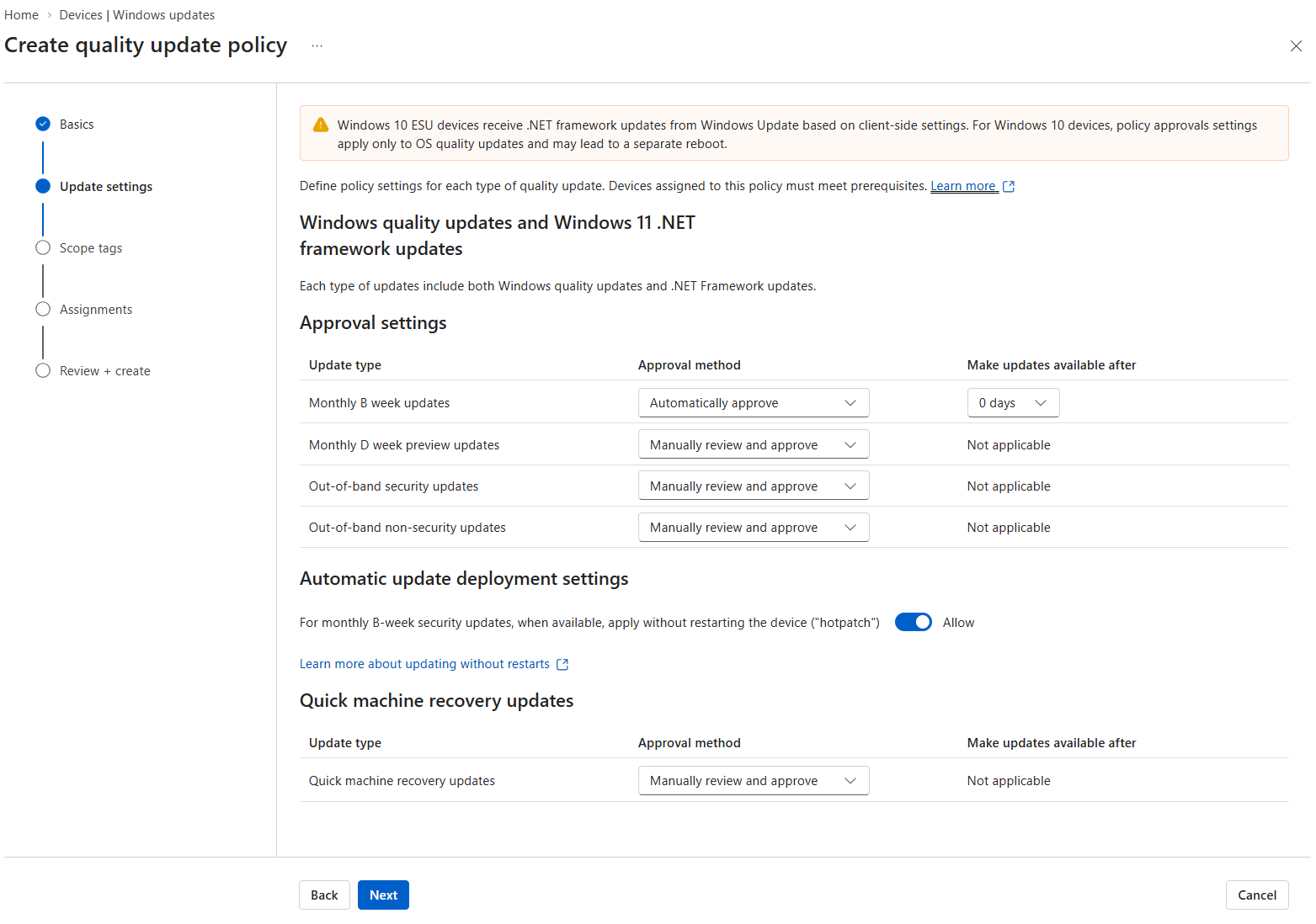
Under Settings, configure the approval method for each update category. The following pilot settings retain automatic deployment for monthly security releases and manual review for the other categories:
| Setting | Proposed pilot configuration |
|---|---|
| Monthly B week updates | Automatically approve |
| Make updates available after | 0 days |
| Monthly D week preview updates | Manually review and approve |
| Out-of-band security updates | Manually review and approve |
| Out-of-band non-security updates | Manually review and approve |
The manual setting for out-of-band security updates needs particular attention. I would only use it if somebody is responsible for reviewing those releases promptly. If your organization wants security releases to deploy without waiting for that review, select automatic approval for this category as well. This is a decision to make with the people responsible for security updates, rather than leaving the setting at its default without discussing it.
Step 3 – Configure hotpatch and recovery approvals
Use When available, apply without restarting the device (“hotpatch”) to allow or block hotpatch for the assigned devices. For a hotpatch pilot, select Allow after checking eligibility. If the purpose of the policy is to keep a group on standard cumulative updates, select Block. The policy setting takes precedence over the tenant-wide default described below.
For Quick machine recovery updates, choose whether fixes should be approved automatically or manually. If using automatic approval for rapid recovery, use no delay. If retaining manual approval, make sure that the people handling an outage know where to approve a recovery release. Setting up the approval policy doesn’t replace the device configuration required for recovery.
Step 4 – Assign the policy
Configure scope tags where required and assign the policy to the Microsoft Entra device group for the pilot. Review the settings and create the policy. For further deployment rings, use separate policies and the intended device groups so that you can configure their offer delays or approve releases separately.
Step 5 – Check the result
Review the policy assignments and check that the pilot devices receive the intended configuration. Also review their existing update rings, since those still determine the deadline and restart behaviour. For categories using manual approval, follow the steps in the next section before expecting the release to be offered.
I would verify an actual update installation and test the applications used by the pilot group before extending the configuration. A successful policy assignment tells us that the configuration was received; it doesn’t tell us that the update has installed successfully.
Managing update approvals
Selecting Manually review and approve introduces a recurring task. Creating the policy and assigning devices doesn’t approve future releases. We must open the available releases, review them and approve the ones we want to deploy for the relevant policies.
The Manage quality updates overview
Navigate to Devices → Manage updates → Windows updates → Quality updates → Manage updates. The Manage quality updates screen shows Latest release, Quality update type, Release date, Approval status and Approved policies. Windows and .NET Framework updates can appear as separate releases; for example, 2026.10 B represents a monthly B-week security release, while 2026.10 D represents a monthly non-security preview.
One thing to watch out for in this overview is an Approved status combined with 0 of 0 under Approved policies, as shown in the captured overview. This doesn’t confirm that your intended policy has approved the release, and it doesn’t tell us whether devices have installed it. Check that the policy exists, has the correct assignments and appears in the release’s policy details. The count alone doesn’t explain why no policies are listed, so I wouldn’t use this screen by itself to validate deployment.
Approving a release
To manually approve an update, use the following steps:
- In Manage quality updates, select the link under Latest release and review the release details, including the KBs and severity where available.
- Read the release notes and known issues, and check whether the release applies to the devices and problems you are managing.
- Open the X of Y link under Approved policies. Policies waiting for approval are marked Needs review.
- Select the pilot policy and choose Approve.
- Check installation results and application behaviour on the pilot devices. Once you are satisfied with the result, return to the release and approve the next deployment policies.
- Follow the deployment through to installation and restart completion, and investigate devices which fail or remain blocked.
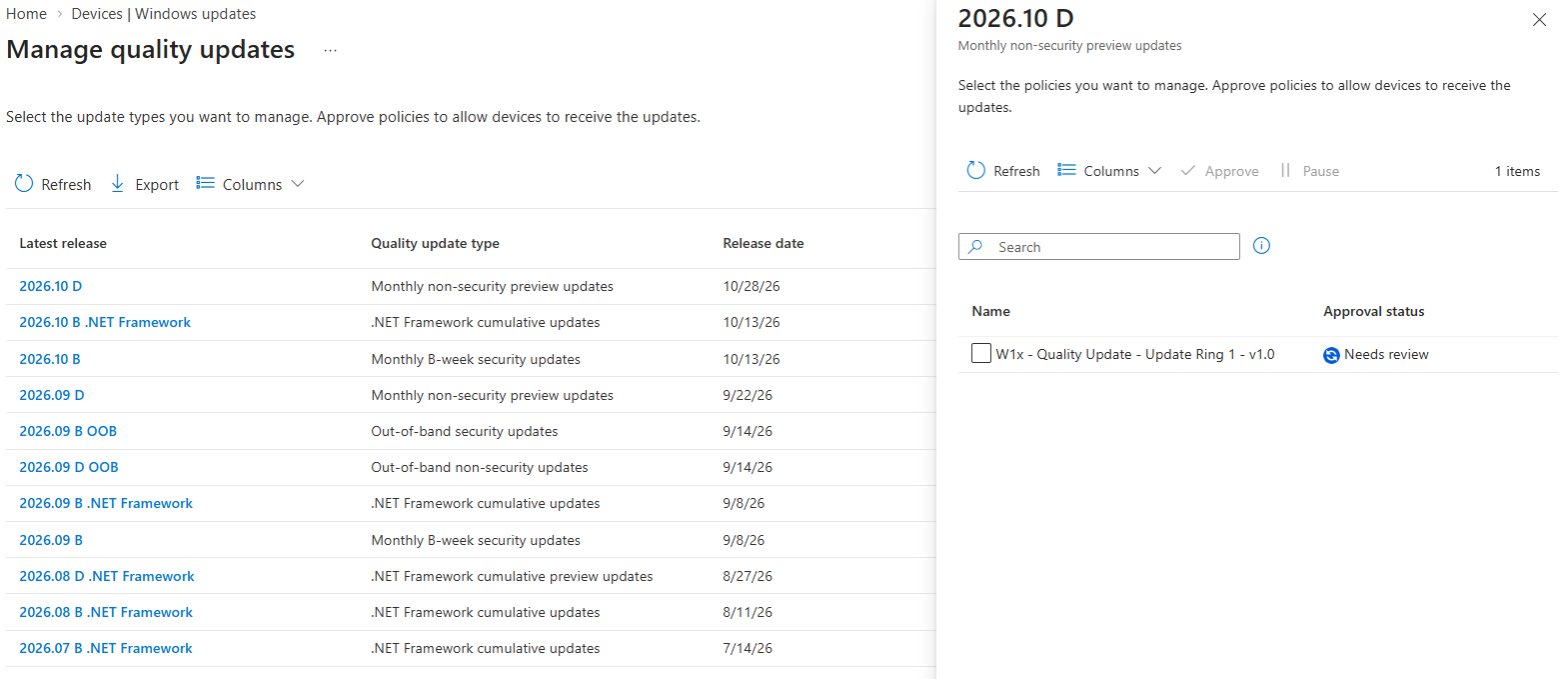
You can also open an individual quality update policy, select the ellipsis (…) beside a release and choose Approve. Review the Windows and supported .NET Framework releases listed in the workflow; don’t assume that approving one entry also approves all related releases. Available Quick machine recovery fixes use the same Manage updates workflow: review the recovery release and approve it for the intended policies.
There is no need to create a new policy or change group assignments for each release. However, manual approval doesn’t automatically move an update from pilot to production. Since Make updates available after doesn’t apply to manual approvals, you must return and approve the production policy when you want that group to receive the update. Devices still need to connect and process the update, and the relevant client deadline and restart settings remain in effect.
For preview updates, leaving a release unapproved can be an intentional choice. For security or recovery updates, make sure there is somebody responsible for the review, and somebody else who can do it when that person is unavailable. This is especially relevant for out-of-band releases, which won’t necessarily arrive during your normal monthly update work.
Pausing a release
If you find a problem, open Approved policies, select the affected policies and choose Pause. This revokes approval for that release. Devices which already installed it aren’t rolled back, and Microsoft documents that pause instructions can take up to eight hours to reach devices. Keep this delay in mind when responding to a problem.
To resume deployment, approve the release again. Pausing one release doesn’t pause all other approved updates, so check which entries are relevant to the issue you are investigating.
See: Approve and deploy quality updates and Approve and deploy Quick machine recovery updates.
Hotpatch and additional functionality
With hotpatch, eligible devices can apply supported security updates without restarting for those updates. The normal baseline months are January, April, July and October, and those baseline updates still require a restart. Hotpatch updates are available in the intervening months. We therefore still need to configure restart behaviour, even if we allow hotpatch throughout the environment.
Microsoft enables hotpatch by default for eligible Intune-managed devices. There are two places to review the configuration: the global tenant-wide default and the hotpatch setting in a quality update policy.
To configure the global default, navigate to Tenant administration → Windows Autopatch → Tenant management → Tenant settings. Set When available, apply updates without restarting the device (“Hotpatch”) to Allow or Block. This default applies to devices which aren’t assigned to a quality update policy, subject to eligibility.
For assigned devices, the hotpatch setting in the quality update policy takes precedence. For example, we can block hotpatch globally and allow it for a pilot group through a policy. We can also allow it globally and block it for a specific group. Make sure to check both settings when investigating why a device follows a particular update path.
Devices which don’t meet the requirements receive a regular cumulative update instead. Also review Microsoft’s restrictions for non-security updates on hotpatch-enabled devices before approving a preview release. The hotpatch configuration can influence which updates a device receives, so approval alone doesn’t tell the complete story.
See: Hotpatch for Windows quality updates.
Is hotpatch a good fit for every device?
Personally, I don’t consider hotpatch a solution which fits every scenario just because it reduces the number of restarts. With laptops, users can go a long time without actually restarting Windows. They close the lid and resume working later, and even selecting Shut down doesn’t necessarily give them a fresh Windows kernel session when Fast Startup is enabled. Fast Startup saves the kernel session for the next startup; selecting Restart performs a full boot cycle instead. See: Microsoft’s explanation of Fast Startup and Restart.
A restart once in a while can help resolve issues, so I don’t see an occasional enforced restart as a problem in itself, provided that the user gets sufficient notice and time to save their work. For a normal user laptop, I would therefore look at the complete maintenance experience before deciding that avoiding as many restarts as possible is the best configuration. Hotpatch still applies eligible security fixes without waiting for a restart, but it doesn’t remove the value of restarting the device occasionally.
For other scenarios, the benefit is more obvious. A kiosk device which needs to remain available during opening hours can benefit from receiving eligible security fixes without interrupting the service it provides. In that case, hotpatch is a much better fit for the uptime requirement, while baseline updates and other maintenance which require a restart can be planned around the device’s use. I would make the decision based on what the device is used for, rather than applying the same approach to every device simply because the functionality is available.
Hotpatch also doesn’t apply to driver or firmware updates. Manufacturers publish those through Windows Update on their own schedules, so a device can still receive an update which requires a restart between the monthly Windows releases. Personally, I think the benefit of reducing restarts will be much greater when we can align all the updates which need to be installed. Until then, allowing hotpatch is only one part of the configuration needed to improve uptime.
For purpose-built machines, such as kiosks, I would also consider whether automatically installing every recommended driver update is appropriate. If the device is working as intended, we may want to keep the tested driver configuration and only deploy a new driver when there is a reason to do so. In that case, use a Windows driver update policy with manual approval, review the available updates, and approve the required drivers for a planned maintenance moment. This still requires reviewing security fixes, reliability issues and manufacturer support requirements; leaving drivers unapproved should be a conscious maintenance decision.
Reducing Windows Update restarts
In my earlier articles, I described settings for deadlines, grace periods, notifications and power behaviour to make restarts more predictable. Hotpatch helps by removing the restart requirement for eligible security updates, but we must also consider the other updates installed on a device.
For example, a device can install its monthly Windows update and restart, then receive a driver or firmware update a few days later which requires another restart. From the user’s perspective, this is frustrating: the device was just updated, and now it needs to restart again. Allowing hotpatch won’t prevent that second update from requiring a restart, so I would review driver and firmware management alongside the Windows Quality Update configuration.
One restart a month
Microsoft describes a new approach in KB5121772 – One restart a month for Windows updates. The article covers functionality introduced with updates released on and after July 28, 2026, where Windows can hold certain driver, .NET and firmware updates and coordinate them with the monthly security update so that they share a restart. Critical or expedited drivers and emergency or out-of-band updates can still be installed as soon as they become available.
There is a limitation for the environment discussed here: at the time of writing, October 2026, Microsoft lists this functionality as available only for devices which aren’t managed by IT departments. The rollout is gradual, and Microsoft says the article will be updated when support becomes available for IT-managed devices. We therefore cannot rely on it for our Intune configuration yet.
I think this is a useful development to follow. Hotpatch reduces the restarts needed for eligible security updates, while restart consolidation addresses other update types. Once available for managed devices, the combination could improve the experience further.
What can we configure today?
Intune already provides Windows driver update policies for controlling driver and firmware approvals and availability. With manual approval, we can review a driver and select when it should become available. For example, aligning its availability with the monthly Quality Update schedule may allow a device to install multiple updates before restarting. This requires coordination and doesn’t guarantee a single restart, since the installation state and requirements of the updates still matter.
Microsoft discusses this in its Windows Driver Update Policies FAQ. Manufacturers can release drivers at different times, and we can’t always predict whether a particular update needs a restart. For manually approved drivers, we can select an availability date; for automatically approved drivers, we can pause a release and subsequently approve it with a selected date.
An interesting detail is that Quality Update deadlines and grace periods apply to driver updates, but Quality Update deferrals don’t control drivers approved through a driver update policy. Those policies have their own deployment deferral settings. This is another reason to review the combination of policies assigned to a device.
My recommended configuration
For organizations using the deployment rings from my December 2023 article, I would retain the device groups where they still provide a useful pilot, and move the Quality Update offer delay to the new policies if the additional approval functionality is required. I would also shorten the previous 0/3/7-day delays. Microsoft recommends deferrals below three days for automatically approved Quality Updates, and my proposed starting configuration is therefore:
The settings below are configured in two different policy types. In the Intune admin center, open Devices → Manage updates → Windows updates, then use:
- Quality updates → select your Windows quality update policy → Properties → edit the update settings for approval methods and Make updates available after.
- Update rings → select your update ring → Properties → Update ring settings → Edit for client settings such as deadlines and the grace period.
I would configure the following for the device groups representing each deployment ring. The policy type column identifies where to configure each setting; the names match the portal rather than introducing a separate setting called “Quality update policy deferral”.
| Setting in the portal | Policy type and section | Ring 1 – Pilot | Ring 2 – Early adopters | Ring 3 – Broad |
|---|---|---|---|---|
| Monthly B week updates – Approval method | Quality update policy → Approval settings | Automatically approve | Automatically approve | Automatically approve |
| Monthly B week updates – Make updates available after | Quality update policy → Approval settings | 0 days | 1 day | 2 days |
| Monthly D week preview updates – Approval method | Quality update policy → Approval settings | Manually review and approve | Manually review and approve | Manually review and approve |
| Out-of-band security updates – Approval method | Quality update policy → Approval settings | Manually review and approve | Manually review and approve | Manually review and approve |
| Out-of-band non-security updates – Approval method | Quality update policy → Approval settings | Manually review and approve | Manually review and approve | Manually review and approve |
| Use deadline settings | Update ring → User experience settings | Allow | Allow | Allow |
| Deadline for quality updates | Update ring → User experience settings | 3 days | 3 days | 3 days |
| Grace period | Update ring → User experience settings | 2 days | 2 days | 2 days |
The 0/1/2-day delays belong to Make updates available after for Monthly B week updates in the quality update policy. They do not refer to Quality update deferral period (days) under Update ring → Update settings. When both policies apply, the cloud quality update policy controls the Quality Update offer delay; the existing update ring deferral isn’t added to it. Devices managed only through an update ring still use that ring’s deferral, so review assignments before changing the existing values.
For the categories set to Manually review and approve, Make updates available after is Not applicable. We must approve each relevant release for the intended policies ourselves, as described in the manual approval section. The three-day deadline and two-day grace period above remain configured in the update ring.
Keep in mind that this is a proposed starting configuration, which I haven’t validated across customer environments. The manual out-of-band security setting assumes somebody reviews releases promptly. If that isn’t how your organization works, I would use automatic approval for that category. Hotpatch and Quick machine recovery should also be configured explicitly, using the considerations described above.
The shorter delays make security updates available sooner, but one day between rings doesn’t guarantee that the previous group has finished installing and restarting. If you need completed testing before the next group starts, use a process which waits for that validation, such as manual approval for the relevant production policy. Simply adding more rings won’t provide that assurance.
I would retain the power settings, Delivery Optimization, restart notifications and other relevant settings from the 2023 article. For drivers, automatic approval of recommended updates may be sufficient where an occasional extra restart is acceptable. Where predictable timing is important, review drivers manually and coordinate availability with the monthly update schedule. For purpose-built machines, I would consider manual driver approval to retain a tested configuration and deploy only the updates required for security, reliability or support, at a suitable maintenance moment. I wouldn’t delay a security-related driver or firmware fix unnecessarily just to avoid another restart.
Summary
With the additional approval settings in Windows quality update policies, we can now make different choices for monthly security updates, preview updates and out-of-band releases. Personally, I would keep monthly security updates on automatic approval and use short deferral periods, provided that somebody actually monitors the first deployment ring. Having multiple rings without reviewing the results only delays the installation of security updates, without giving us the benefit we intended.
If you want to use this functionality, make sure to review your existing Windows Update rings as well. One quality update policy with a zero-day delay assigned across all deployment groups overrides their different Quality Update deferrals. To keep a staged offer, configure the delays in separate quality update policies for those groups. We still need those settings for deadlines, grace periods and restart notifications, but the Quality Update deferral is controlled by the quality update policy once both are assigned. Also keep in mind that selecting manual approval introduces a recurring task: somebody must review and approve the relevant releases for each deployment policy. If that process isn’t in place, I would reconsider using manual approval for security updates.
For hotpatch, check both the tenant-wide setting and the setting in the quality update policy, since the policy takes precedence for assigned devices. I would also consider the device scenario: a kiosk can benefit more from avoiding a restart during use, while an occasional planned restart on a user laptop is not necessarily a problem. And don’t forget about driver and firmware updates. These can still require a restart, even when the Windows security update itself doesn’t. Until Microsoft’s restart consolidation functionality becomes available for IT-managed devices, reviewing the driver update configuration remains part of improving the update experience.
The additional settings from my December 2023 article, such as power settings, Delivery Optimization and end-user notifications, are still relevant. My advice is to review the combination of these settings and test the changes with a representative group of devices before modifying the configuration for the rest of the organization.
References
Windows Autopatch — Elevate Your Update Experience for Modern Work – Windows IT Pro Blog
Windows news you can use: September 2026 – Windows IT Pro BlogCtrl + Manage: Update management – Microsoft Tech CommunitySecuring devices faster with hotpatch updates on by default – Windows IT Pro BlogWhat’s new in Microsoft Intune – Week of March 30, 2026
Manage Windows quality updates – Microsoft LearnWindows quality updates and .NET Framework updates – Microsoft LearnHotpatch for Windows quality updates – Microsoft LearnKB5121772 – One restart a month for Windows updates – Microsoft SupportManage Windows driver updates – Microsoft LearnFrequently Asked Questions About Windows Driver Update Policies – Microsoft Learn