When managing operating system updates on our Modern Workplace devices, we generally want to achieve two things. First, we want to make sure that security updates are installed as quickly as possible, reducing the time our devices are exposed to known vulnerabilities. At the same time, we don’t necessarily want our devices to upgrade to a new major operating system version immediately after it becomes available, since these releases can introduce changes that affect business applications, security solutions and the way our devices are managed.
For Windows, we have been dealing with this challenge for quite some time using Windows Update for Business, where we make a distinction between quality updates and feature updates. I described my preferred configuration in an earlier article, Configuring even better Windows Update for Business settings for your Microsoft Intune managed Modern Workplace. Although Apple provides different capabilities for managing operating system updates, I think we should aim for a similar approach when managing our macOS devices.
Especially with major macOS releases, I believe it’s important to have sufficient time to validate whether our business applications, security solutions and management configurations continue to work correctly. A good example is macOS 27, where Microsoft documents changes to the privacy permissions used by Microsoft Purview Endpoint DLP. These are exactly the kinds of changes we want to discover during testing, rather than after a new operating system has already been deployed across our production devices.
With Apple’s Declarative Device Management (DDM), we have several options to control software updates using Microsoft Intune. We can delay major and minor updates, configure automatic installation behaviour and enforce a specific macOS version before a certain date. While these capabilities provide quite a bit of flexibility, there are some important differences between making an update available and actually enforcing its installation.
For example, configuring a seven-day deferral for minor updates doesn’t mean that those updates will automatically be installed after seven days. It only determines when they become available to the device. Similarly, while we can delay a major macOS upgrade for up to 90 days, I would rather have the option to approve a specific operating system version and progressively deploy it to our different update rings, instead of simply allowing the upgrade to become available after a predefined number of days.
The configuration I prefer therefore combines a 90-day major-upgrade deferral for all managed Macs, separate update rings for minor and system updates, and specific-version enforcement for major operating system upgrades that have been tested and approved. In addition, we can use Nudge to encourage users to install available updates, although we need to make sure that Nudge doesn’t introduce notifications or installation deadlines that conflict with those configured through DDM.
- What options does Apple provide for managing macOS updates?
- Why should we treat major and minor updates differently?
- My recommended macOS update configuration
- Configuring the update policies in Microsoft Intune
- Controlling major macOS upgrades using deployment rings
- Managing minor and security updates
- Do we still need Nudge?
- Validating the configuration
- Important considerations
- Summary
- References
What options does Apple provide for managing macOS updates?
Apple has been moving device management functionality towards Declarative Device Management, which changes how a management service and a managed device interact. Where traditional MDM is largely based on sending commands to devices, DDM allows the management service to declare the desired configuration or software-update state. The device is then responsible for processing that declaration, performing the necessary actions and reporting its status back to the management service.
For software updates, this means that macOS can manage the download, preparation, notifications and installation of an update based on the configuration provided through Microsoft Intune. Microsoft exposes these capabilities through the Settings Catalog, allowing administrators to configure software-update settings and installation requirements without relying entirely on traditional MDM software-update commands.
Microsoft describes the available functionality in Configure update policies for Apple devices, while Apple provides additional technical details in Deploying software updates using declarative management.
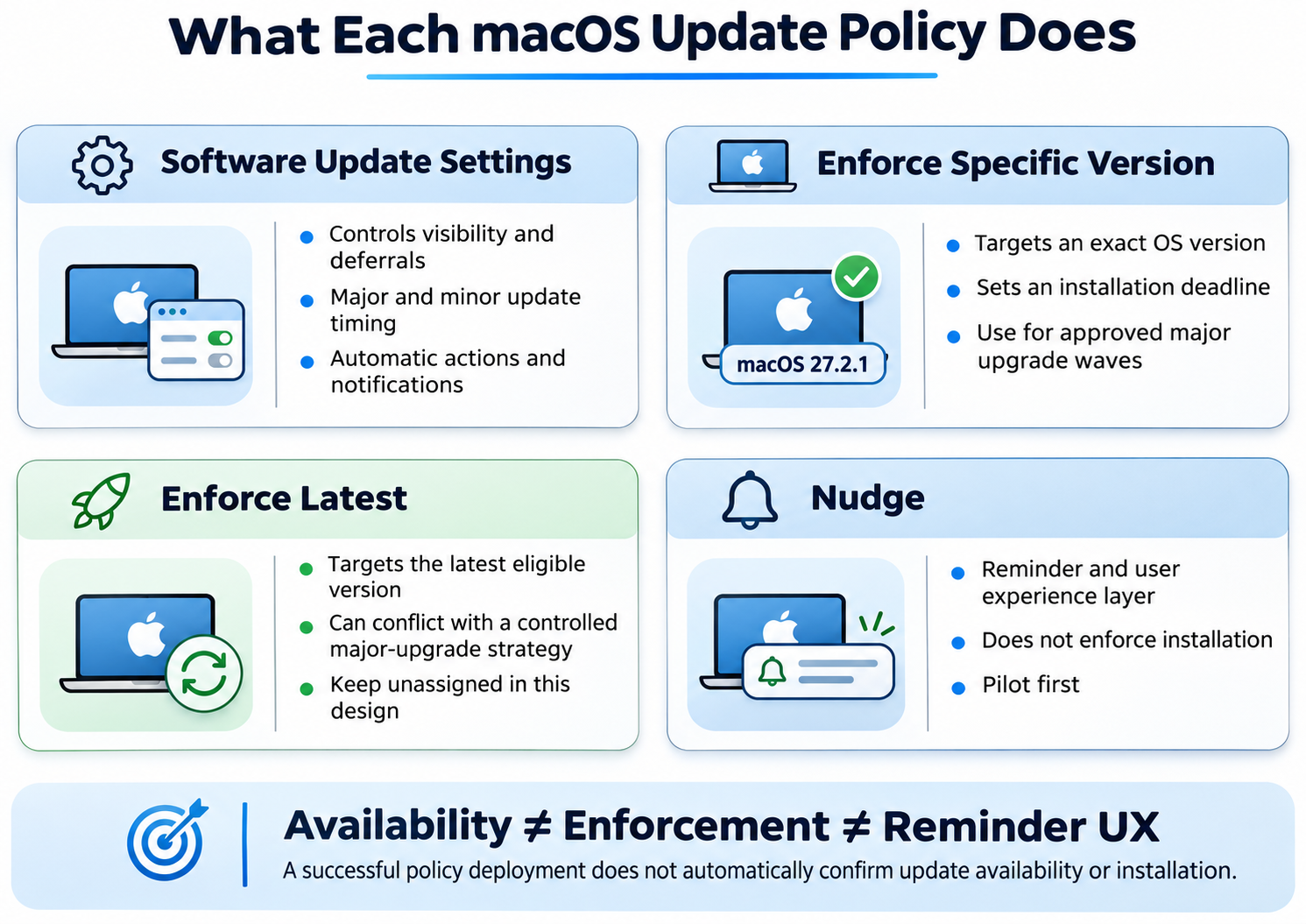
There are three DDM software-update configurations that are particularly relevant to our approach: Software Update Settings, Enforce Latest and Enforce Specific Version. Although they are related, they serve different purposes, and understanding those differences is important when combining them into an update strategy.
Software Update Settings
The first option is DDM Software Update Settings, which allows us to configure how macOS handles software updates. Apart from controlling automatic downloads, installation behaviour and notifications, this configuration also allows us to define how long different types of updates should be deferred before becoming available to the device.
Apple distinguishes between three types of update deferrals:
| Setting | Description |
|---|---|
MajorPeriodInDays | Delays major macOS operating system upgrades |
MinorPeriodInDays | Delays minor macOS updates |
SystemPeriodInDays | Delays system and non-OS updates |
Each of these settings supports a deferral between 1 and 90 days on supported macOS versions. For example, when we configure a major-update deferral of 90 days, a newly released major macOS upgrade will normally not be offered through Software Update during the applicable deferral period. For minor updates, we could configure a shorter deferral of one day on our test devices, allowing us to validate a new release before it becomes available to a larger group of users.
An important detail is that these settings control when updates become available, rather than when they must be installed. A seven-day minor-update deferral therefore doesn’t establish a mandatory installation deadline seven days after release. Although we can also configure automatic installation behaviour, that is not the same as enforcing installation of a particular operating system version by a specific date.
Apple documents these settings in SoftwareUpdateSettingsDeferralsObject.
Software Update Enforce Latest
The second option is Software Update Enforce Latest, which allows us to configure an installation deadline for the latest eligible operating system update. Rather than selecting an individual version, we configure a delay in days and the time at which installation should be enforced. macOS then determines the applicable update and calculates its deadline according to the managed software-update configuration.
At first, this sounds like an ideal way to make sure that devices remain up to date without having to maintain individual update policies. However, Enforce Latest is not restricted to minor updates within the currently installed major macOS version. Once a newer major operating system release becomes eligible, it can also become the target of the enforcement policy, which is something we need to consider when we deliberately want devices to remain on an older major release.
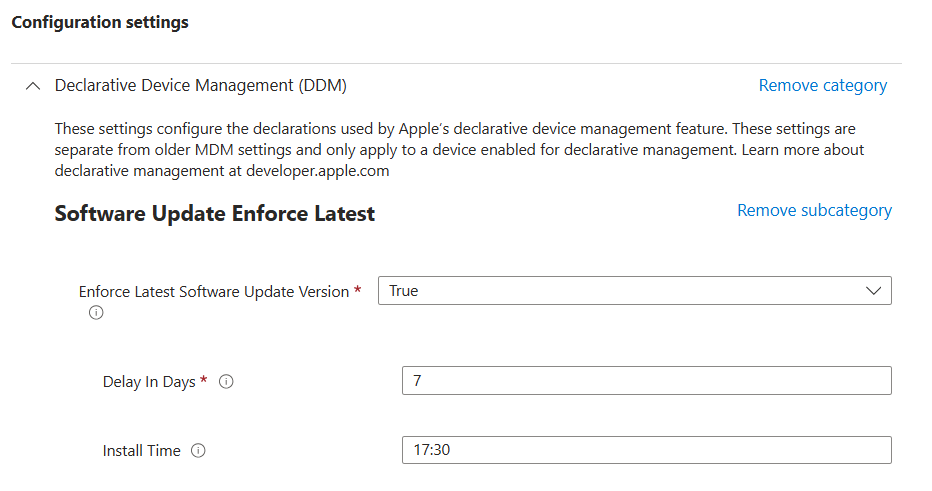
For organizations that always want to move to the latest eligible macOS version, Enforce Latest may be a reasonable option. In our environment, however, I want to approve major operating system upgrades before they are installed, while still allowing minor updates to follow a relatively short deployment cycle. For that reason, I wouldn’t assign Enforce Latest broadly across all managed Macs as part of this configuration.
Software Update Enforce Specific Version
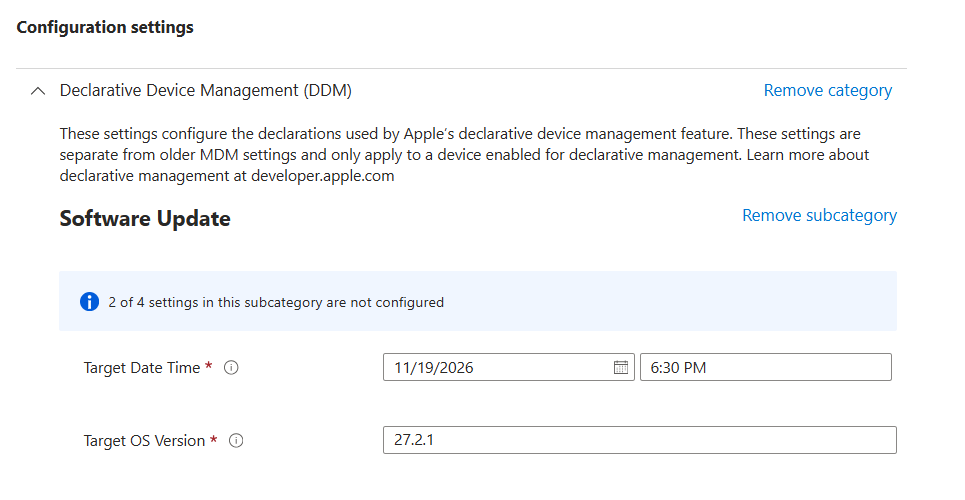
The third option is particularly interesting when we want more control over the operating system version being deployed. With DDM Software Update Enforce Specific Version, we can select a particular macOS release and configure the date and time by which it must be installed, rather than automatically targeting whichever version Apple currently considers the latest.
The configuration provides the following options:
| Setting | Description |
|---|---|
| Target OS Version | The operating system version that must be installed |
| Target Date Time | The installation deadline |
| Details URL | Optional link to additional information |
For example, suppose Apple releases a new major operating system version, macOS 27.0, but we need several weeks to complete our application and security testing. By the time we are ready to approve the upgrade for our production devices, Apple may already have released macOS 27.2.1. In that situation, there is no reason to first deploy the original 27.0 release if we have already validated 27.2.1 and can target that version directly.
This distinction is important because approving a major macOS release doesn’t necessarily mean that we should deploy its initial .0 version. We approve the major operating system family, but select the actual maintenance release we want our devices to install. Personally, I would prefer to deploy a validated maintenance version rather than an older release that immediately requires additional updates.
The additional control does introduce some management effort, since we need to maintain the selected version, deployment assignments and installation deadline. However, I think that is a reasonable trade-off when managing major operating system upgrades, particularly when we want to validate a release before making it available to our production devices.
Why should we treat major and minor updates differently?
When Apple releases a minor macOS update, it generally contains security fixes, reliability improvements or changes to existing functionality. For these updates, I think it’s important to maintain a relatively short deployment cycle, since delaying important security fixes for several weeks could unnecessarily increase the risk to our devices. We still need to validate updates, of course, but the validation process should be proportionate to the expected impact of the release.
Major operating system upgrades are different, because they can introduce changes to security permissions, authentication, application compatibility and device management. These changes aren’t necessarily a problem, but they can require adjustments to our existing configurations, and we need to identify those requirements before upgrading our production devices.
A good example is macOS 27, where Microsoft documents changes affecting the permissions required by Microsoft Purview Endpoint DLP. Depending on the configuration being used, organizations may need to adjust their device management policies to ensure that Endpoint DLP continues to operate correctly. Microsoft describes the relevant changes in Microsoft Purview Endpoint DLP changes in macOS 27.
Apart from Endpoint DLP, I would also validate Microsoft Defender for Endpoint, Platform SSO, authentication methods, certificate deployment, VPN connections and the applications that are important to the organization. I would include both in-place upgrades and newly enrolled devices in this testing, since changes to management permissions or operating system behaviour can affect these scenarios differently. Apple provides AppleSeed for IT, which can help organizations identify some of these issues before a new major operating system becomes generally available.
For that reason, I prefer to make a clear distinction between minor and major updates. Minor updates should become available relatively quickly through our update rings, while major upgrades should be explicitly approved and deployed in a controlled manner. This provides us with a predictable process without requiring every type of software update to follow exactly the same schedule.
My recommended macOS update configuration
My preferred configuration consists of a common set of software-update settings, a single major-upgrade deferral and three update rings for minor and system updates. The idea is to keep the day-to-day update configuration relatively simple, while introducing a separate deployment process for major operating system upgrades.
During normal operation, all managed Macs receive the shared software-update settings and a 90-day deferral for major macOS upgrades. Minor and system updates follow three deployment rings, allowing us to make updates available to a small group of devices first, followed by a broader pilot group and finally the remaining production devices.
| Ring | Minor updates | System updates | Purpose |
|---|---|---|---|
| Ring 1 | 1 day | 1 day | Early validation |
| Ring 2 | 3 days | 3 days | Broader pilot |
| Ring 3 | 7 days | 7 days | Production |
I would keep Ring 1 relatively small, with devices used by IT administrators and colleagues who can provide meaningful feedback when something doesn’t work as expected. Ring 2 should contain a representative selection of users and devices, including those running business-critical applications, while Ring 3 contains the broader production population. In this way, minor updates progressively become available, while the 90-day major-upgrade deferral applies to all devices unless we explicitly release them for an approved major operating system upgrade.
When a new major version has been validated, we temporarily exclude the devices in the selected deployment ring from the 90-day deferral and assign an enforcement policy targeting the approved macOS version. After successful deployment, the devices are removed from the temporary exclusion group and the obsolete enforcement assignment is cleaned up. This keeps the normal policy configuration consistent, regardless of which major operating system version is currently being deployed.
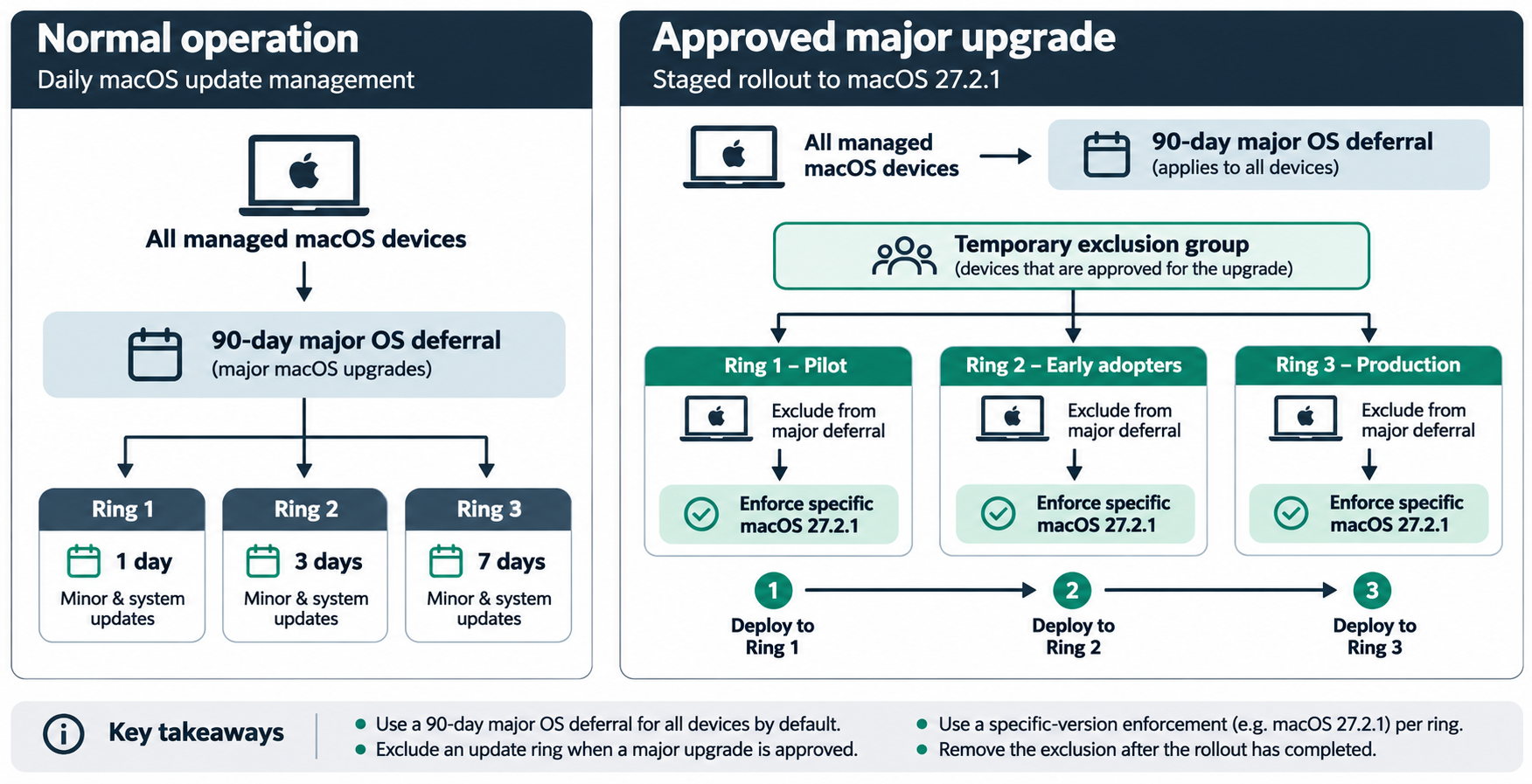
Figure 1 — A shared major-upgrade deferral, separate minor-update rings and targeted enforcement for approved major macOS upgrades.
I prefer this approach because it separates the availability of routine updates from the approval of major operating system releases. We no longer depend on different major-update deferral periods to determine when our deployment rings can upgrade, but instead make that decision after the selected operating system version has been validated.
There is one important limitation to consider: Apple’s major-update deferral has a maximum of 90 days. Once that period has expired for a release, the major upgrade can become available even if we haven’t explicitly approved it through our deployment process. The global deferral therefore provides a controlled validation period, rather than an indefinite block on future major macOS versions.
Configuring the update policies in Microsoft Intune
The configuration can be created through the Microsoft Intune Settings Catalog, under Devices → macOS → Configuration. I prefer keeping the common software-update settings separate from the ring-specific deferrals, because it makes the purpose of each configuration easier to understand and helps avoid unnecessary overlapping assignments.
Common software-update settings
The first policy is responsible for the general software-update experience on all managed Macs. In our environment, this configuration is named macOS - CP - DEV - OS Update Settings - v1.2 and includes settings that allow standard users to install operating system updates, enable automatic downloads and installation, configure update notifications and manage supported security-update behaviour.
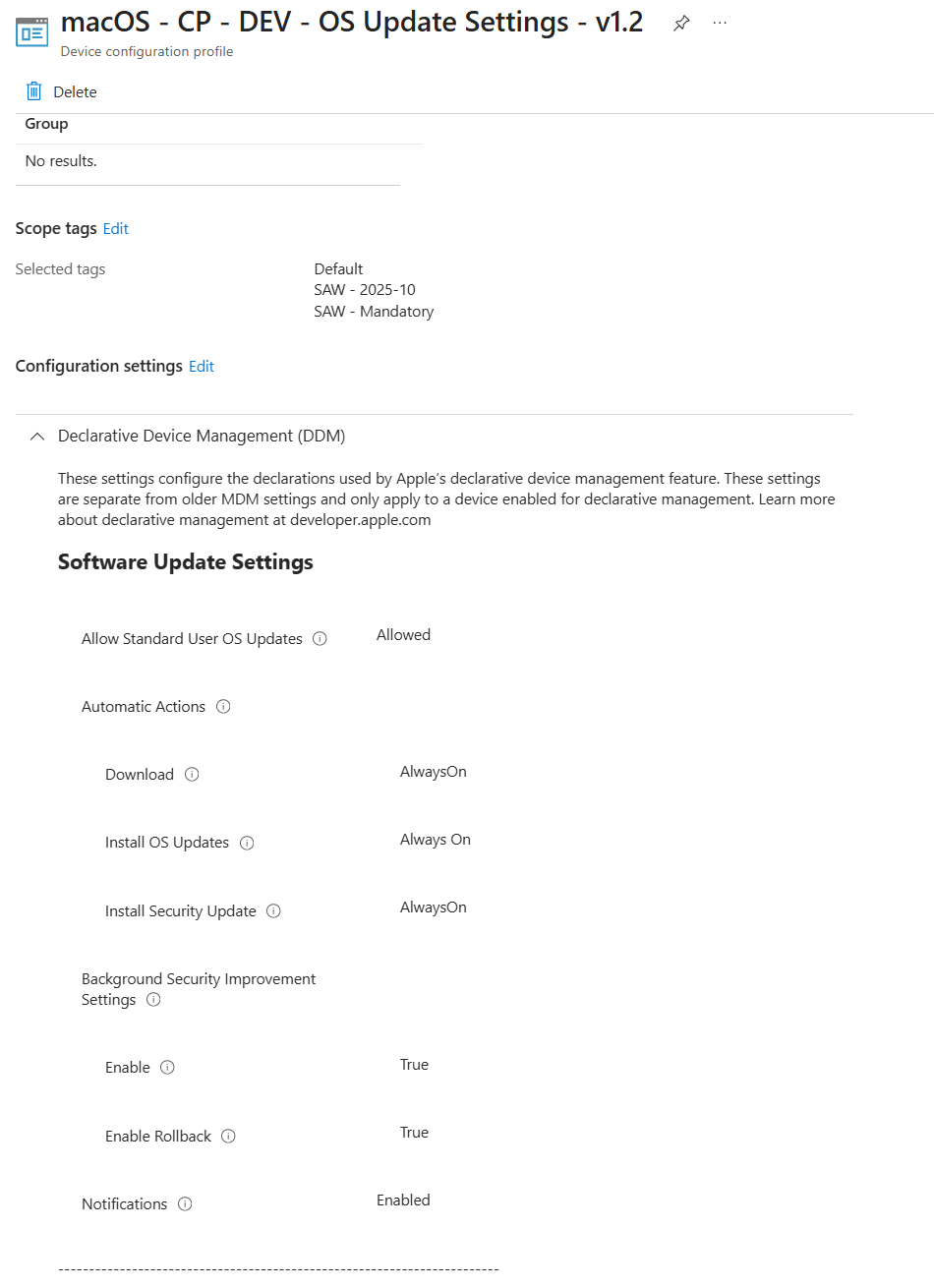
These settings are applicable regardless of the update ring, so I would assign the policy to all managed macOS devices using the appropriate assignment filter. There is little value in maintaining different copies of the common configuration when the desired behaviour is the same for all devices, and a single policy also makes it easier to update those settings in the future.
One detail worth mentioning is that automatic installation doesn’t provide the same guaranteed deadline as a DDM enforcement declaration. Although we want macOS to download and install available updates automatically where supported, we shouldn’t assume that enabling these options guarantees installation within a particular number of days. For that purpose, we need to use the appropriate enforcement functionality.
Configuring the 90-day major-upgrade deferral
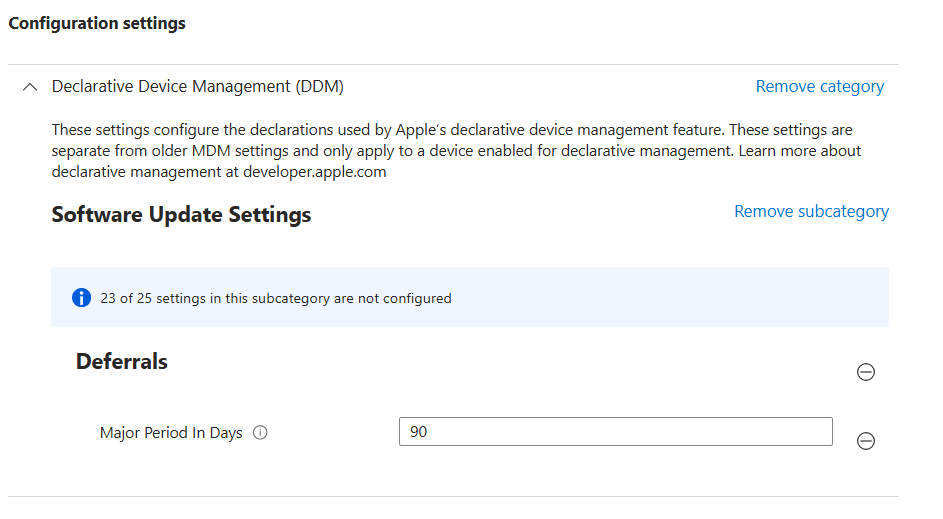
The second policy is responsible for delaying major macOS upgrades. I would name this policy macOS - CP - Delay Major Software Updates - 90 Days - v2.0 and configure MajorPeriodInDays = 90 under Declarative Device Management → Software Update Settings → Deferrals, leaving the minor and system deferral values unconfigured.
The policy should be assigned to all managed Macs, while excluding a dedicated group containing devices that have been approved for a major operating system upgrade. In our environment, a suitable name for that group would be AAD_DG_macOS_MajorUpgrade_ActiveDeployment, although the exact naming convention can obviously be adjusted to match the organization.
The important part is how the group is used. Rather than permanently excluding Ring 1 or Ring 2 from the major-upgrade deferral, we only add devices to the exclusion group while they are participating in an approved deployment. Once the deployment is complete, we remove the devices again, ensuring that they receive the same major-upgrade deferral when Apple releases a future major macOS version.
Configuring the minor-update rings
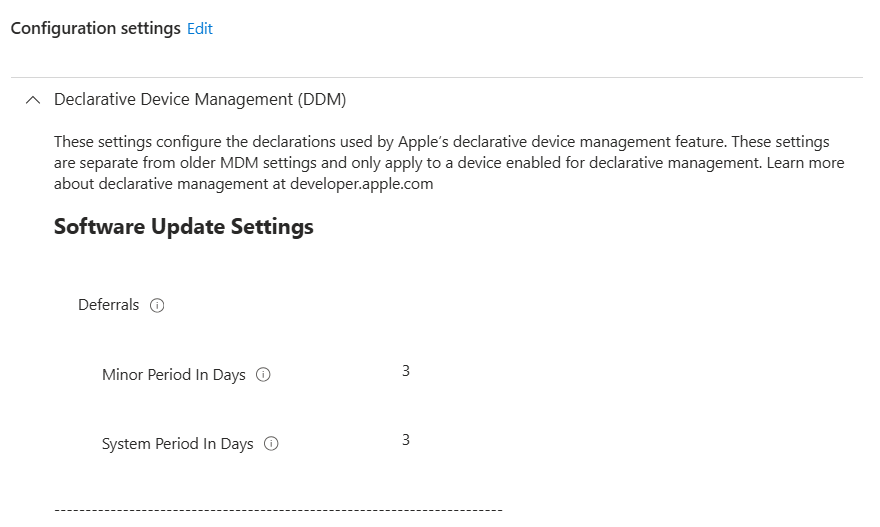
For minor and system updates, I would maintain three separate policies, each targeting its own deployment ring. Ring 1 uses a one-day deferral, Ring 2 uses three days and Ring 3 uses seven days, providing a relatively short interval between the different stages of the deployment.
| Policy | MinorPeriodInDays | SystemPeriodInDays |
|---|---|---|
| Delay Software Updates — Ring 1 | 1 | 1 |
| Delay Software Updates — Ring 2 | 3 | 3 |
| Delay Software Updates — Ring 3 | 7 | 7 |
Where possible, I prefer device-based assignments for these configurations, since the update ring should be associated with the device rather than the user who happens to be signed in. This is particularly useful for shared devices or situations where different users work on the same Mac.
One thing to watch out for is overlapping assignments, since Apple supports combining multiple Software Update Settings declarations on the same device. Depending on which values are configured, this can result in a different effective deferral than the one we expected. I therefore recommend making sure that every managed Mac receives only one minor/system update-ring configuration.
A practical approach is to assign Ring 1 and Ring 2 to dedicated device groups and assign Ring 3 to all remaining managed Macs, excluding every group used by Ring 1 and Ring 2. This avoids having to maintain an additional group for every production device, although the exclusions must be kept accurate whenever the early-ring groups change.
Controlling major macOS upgrades using deployment rings
The most interesting part of this configuration is how we manage major operating system upgrades. Rather than relying on a fixed number of days before an upgrade becomes available, we can approve a selected macOS version and progressively deploy it to our different update rings.
Suppose Apple releases macOS 27.0 and we start validating the new operating system. During that validation period, Apple may continue releasing updates within the macOS 27 family, and by the time we’re ready to start our deployment, version 27.2.1 might already be available. In that situation, I would prefer to target the validated 27.2.1 release directly, rather than first upgrading devices to 27.0 and subsequently requiring them to install additional updates.
This means that we should distinguish between approving the new major operating system and selecting the exact version we want to deploy. Our decision might be to move the organization from macOS Tahoe to macOS 27, but the version we actually configure through DDM can be 27.2.1 or another validated maintenance release. If Apple publishes a newer version during the rollout, we can evaluate whether to continue with the approved target or validate the newer release before progressing to the next deployment ring.
Approving the operating system version
Before releasing the upgrade to users, I would make sure that the selected version has been validated against the applications and security configurations used in the organization. This includes checking that Microsoft Defender for Endpoint and Microsoft Purview Endpoint DLP function correctly, that authentication and device management continue to work, and that the required business applications are supported.
It’s also important to check that the target version remains available for installation during the planned deployment period. When we configure a specific-version enforcement policy, we don’t want to select an installation deadline that extends beyond the period in which the target version can still be installed. The target version and deadline should therefore be reviewed together.
Releasing Ring 1
Once the operating system version has been approved, the first deployment step is to add the Ring 1 devices to our temporary major-upgrade exclusion group. This removes the 90-day major-upgrade deferral from those devices once Microsoft Intune and macOS have processed the updated assignment, allowing us to make the approved major release available to the first group of users.
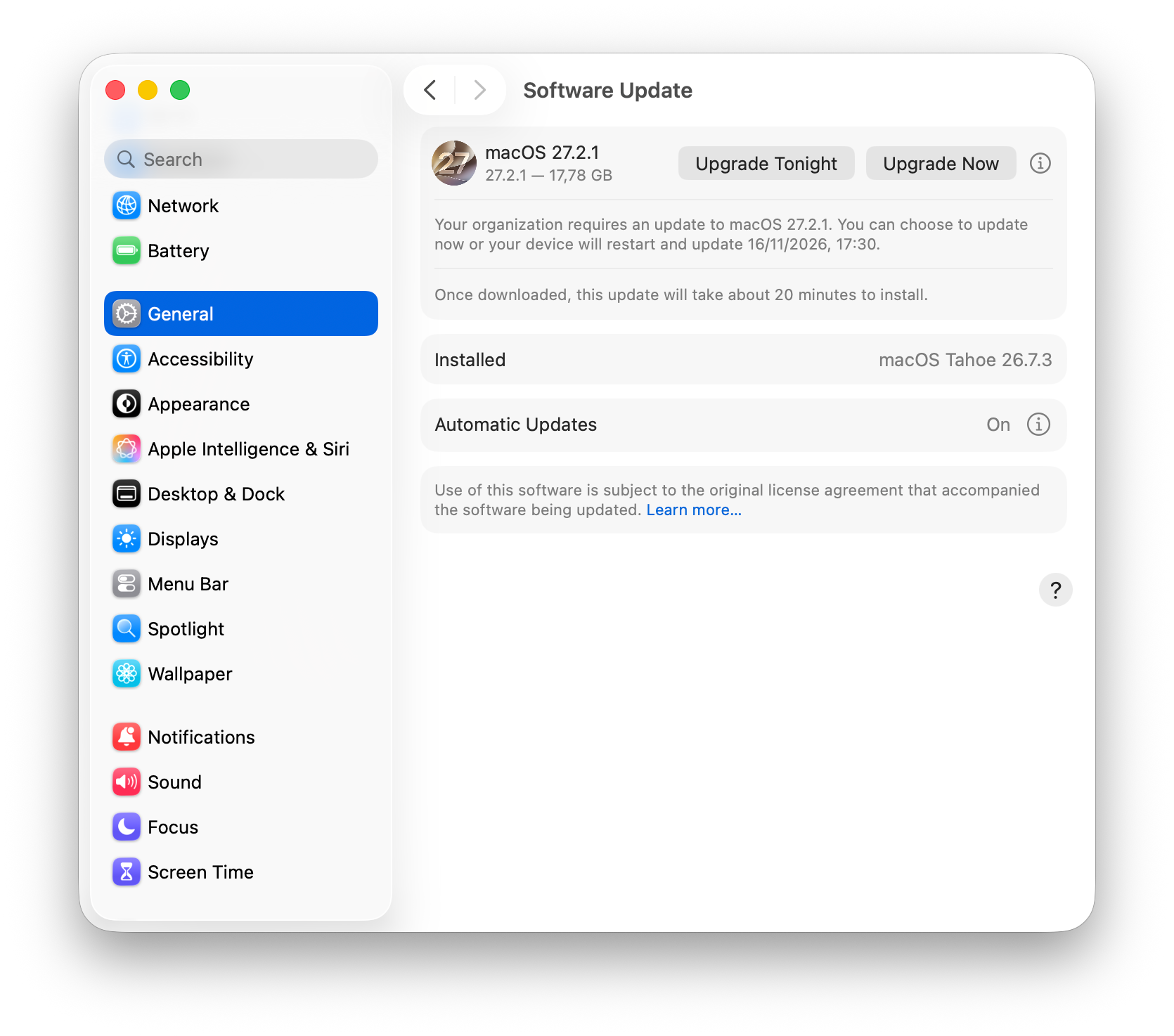
Before assigning the enforcement policy, I would verify that the selected upgrade is available through System Settings → General → Software Update. Although Apple documents that DDM enforcement can operate independently of configured deferrals, removing the visibility deferral helps users initiate an approved upgrade themselves before the installation deadline is reached.
We can then assign a DDM Specific Version policy targeting the approved release, for example macOS - CP - Enforce macOS 27.2.1 - Ring 1, with a suitable future installation deadline. This allows users to choose when to install the upgrade within the available period, while ensuring that the installation becomes mandatory when the configured deadline is reached.
One detail to consider is that excluding devices from the major-upgrade deferral can also make other eligible major releases visible. Although the DDM policy specifies the required target, we should still verify which upgrades users can manually select during the rollout.
Validating the results and releasing Ring 2
After Ring 1 has received the enforcement policy, I would monitor the update installation through Microsoft Intune and confirm that the devices are actually running the approved operating system version. Successful deployment of the configuration policy doesn’t automatically mean that the update has been installed, so the installed OS version and the reported installation state are important.
Apart from verifying the operating system version, I would also check that the applications and security components we validated earlier continue to work after the upgrade. If Ring 1 completes successfully and no significant issues have been identified, we can approve Ring 2 and repeat the same process with a larger and more representative group of users.
Ring 2 devices are then temporarily excluded from the major-upgrade deferral and receive their own specific-version enforcement assignment with an appropriate installation deadline. If Apple has released a newer maintenance version in the meantime, I would review whether to continue deploying the existing approved target or first validate and approve the newer release.
Releasing Ring 3 and completing the deployment
Once the upgrade has been validated in Rings 1 and 2, we can continue with the production devices in Ring 3. At this point, the operating system should already have been tested on different device models and with the applications used throughout the organization, reducing the likelihood of discovering major compatibility issues during the broader deployment.
For production users, I would communicate the approved operating system version, the installation deadline and the fact that a restart may be required. Although DDM handles the installation enforcement, clear communication still helps users plan their work and avoids unnecessary disruption.
After the deployment has been completed, I would remove the obsolete specific-version enforcement assignments and remove the upgraded devices from the temporary major-upgrade exclusion group. This last step is important because we want the regular 90-day major-upgrade deferral to apply again when Apple releases the next major version of macOS.
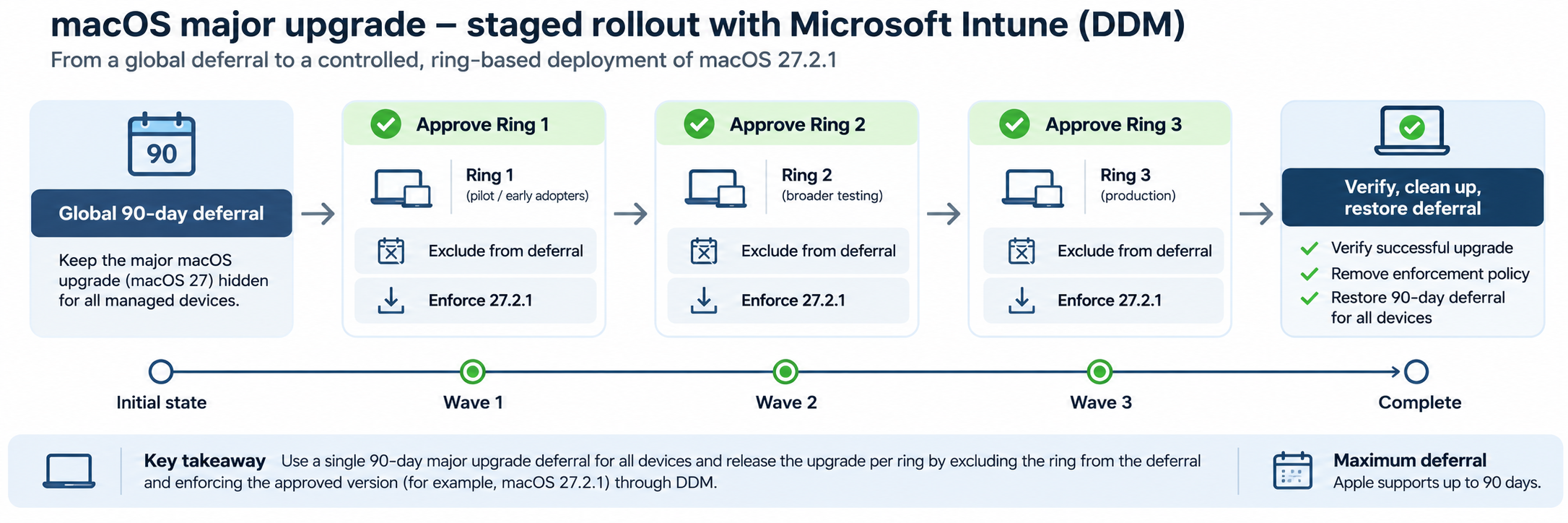
Figure 2 — An approved major macOS release is progressively deployed through the update rings, with each wave requiring validation before the next group is released.
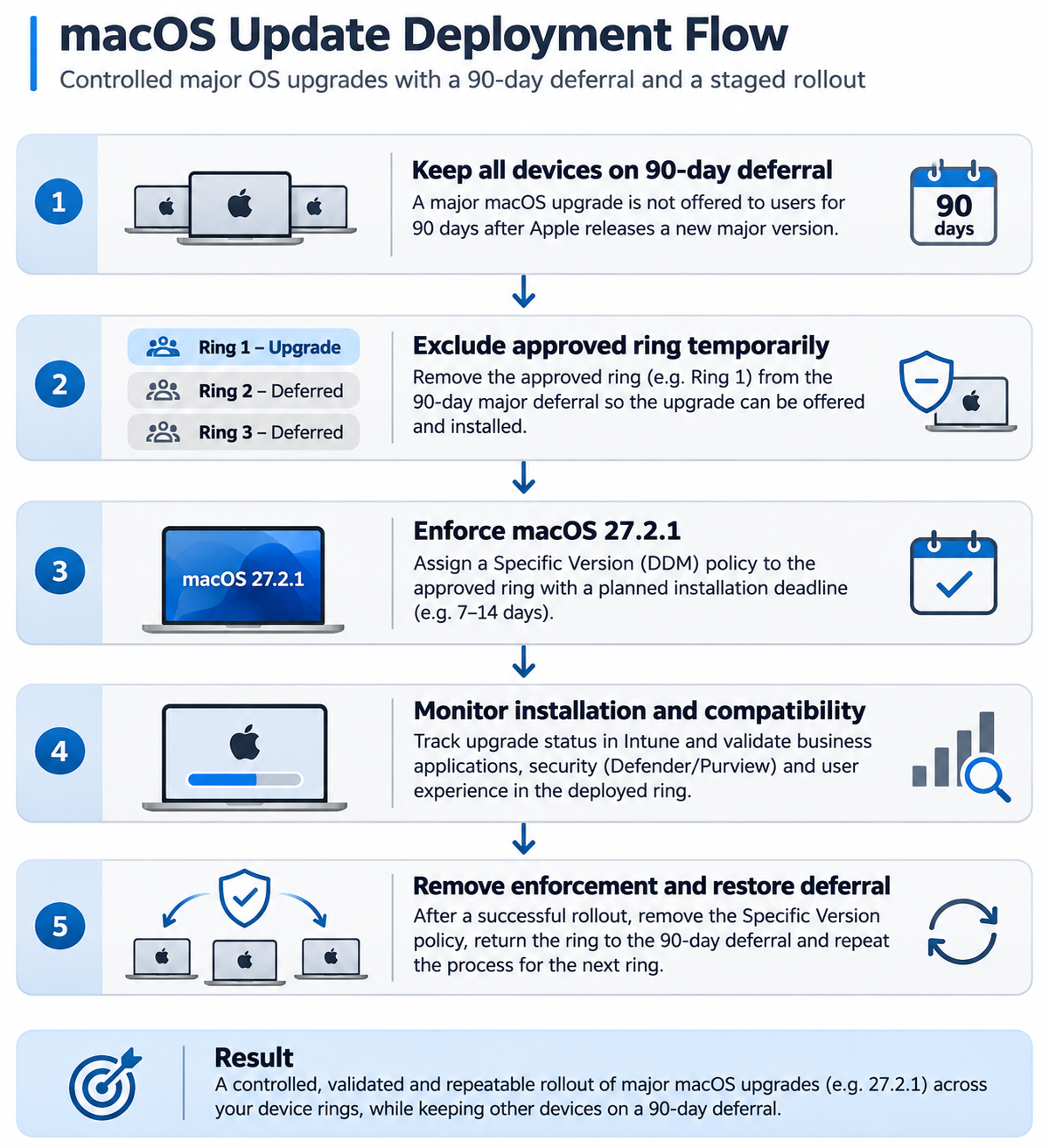
Figure 3 — The operational procedure covers approval, temporary deferral exclusions, specific-version enforcement, monitoring and cleanup.
Managing minor and security updates
For minor macOS updates, I prefer a more automated approach, since these releases frequently contain important security fixes and reliability improvements. By using the three update rings, we can provide a short validation period without delaying updates for the entire organization until a major deployment decision has been made.
For example, when Apple releases a minor update on Monday, devices in Ring 1 would normally become eligible after one day, while Ring 2 would follow after three days and Ring 3 after seven days. This gives us an opportunity to identify significant problems on our early validation devices before the update becomes available to the larger production population.
However, it’s important to remember that the deferral only controls availability. When a device reaches the end of its configured deferral period, macOS can offer the update, but that doesn’t mean the installation has automatically become mandatory. Although we enable automatic update functionality in our common configuration, this does not guarantee installation within the one-, three- or seven-day periods.
If we want to enforce installation of a particular minor update, we can use DDM Specific Version enforcement for the approved release. One thing to consider is that organizations may support multiple major macOS versions at the same time, such as devices running Tahoe 26.x and devices already running macOS 27. We wouldn’t want an enforcement policy intended to install a minor security update to unintentionally upgrade every Tahoe device to macOS 27.
For that reason, I would maintain separate targeted-update enforcement assignments for each supported major macOS release when mandatory installation deadlines are required. This involves additional management effort, but it allows us to enforce the appropriate maintenance release without changing the major operating system version that has been approved for those devices.
There may also be situations where we want to accelerate a security update, particularly when a vulnerability is being actively exploited. In those cases, I would evaluate whether the risk of delaying the update is greater than the risk of deploying it before completing the normal validation cycle. An accelerated deployment might still begin with a small group of devices, but the interval between the rings could be reduced significantly.
Apple also provides Background Security Improvements, which have their own update-management behaviour. These should be considered separately from ordinary major, minor and system updates, and the applicable settings should be reviewed against Apple’s current documentation.
Do we still need Nudge?
One question I think is worth asking is whether we actually need an additional application to remind users about macOS software updates. DDM already provides native macOS notifications and, when we configure an enforcement policy, macOS can require installation by a specified deadline. Depending on the user experience we’re trying to achieve, these capabilities may already be sufficient.
Nudge is an open-source application that provides additional reminders for macOS updates, encouraging users to install them before they become overdue. It can provide a more visible notification experience than the standard macOS update notifications, but it’s important to understand that Nudge doesn’t install updates itself. Instead, it directs users towards the macOS update mechanism.
Deploying Nudge using Microsoft Intune
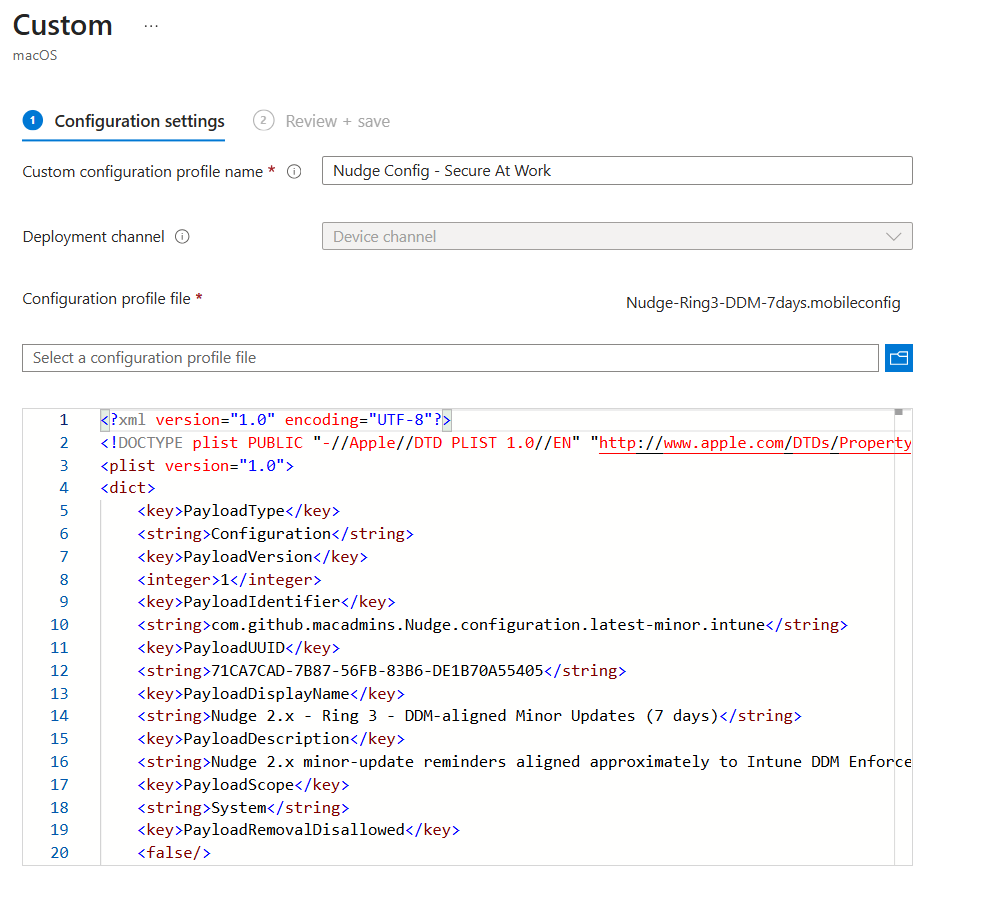
I would deploy Nudge using its signed Essentials .pkg, rather than maintaining a custom installation script that downloads the application from GitHub. This allows us to use the macOS PKG application deployment functionality in Intune, including the supported installation and detection mechanisms.
The configuration can be delivered separately using a managed .mobileconfig profile, which means that we can modify Nudge’s behaviour without having to reinstall the application. Similarly, we can update Nudge when a newer version becomes available without having to rebuild the configuration profile, provided the configured settings remain compatible.
Microsoft describes the supported deployment method in Add an unmanaged macOS PKG app to Microsoft Intune.
Using Nudge with the SOFA feed
Nudge 2.x supports integration with the SOFA feed, which provides information about Apple operating system releases. One setting I find particularly interesting is requiredMinimumOSVersion = latest-minor, which allows Nudge to focus on minor updates within the currently installed major macOS version.
This fits our design, since we don’t want Nudge to encourage a Tahoe device to upgrade to macOS 27 simply because a newer major operating system has been released. Instead, Nudge can remind users about the applicable maintenance updates for the macOS version they are currently running, while major upgrades remain controlled through our DDM deployment process.
The relevant options are documented in the Nudge Wiki, including the Nudge v2.0 features.
Aligning Nudge with our update rings
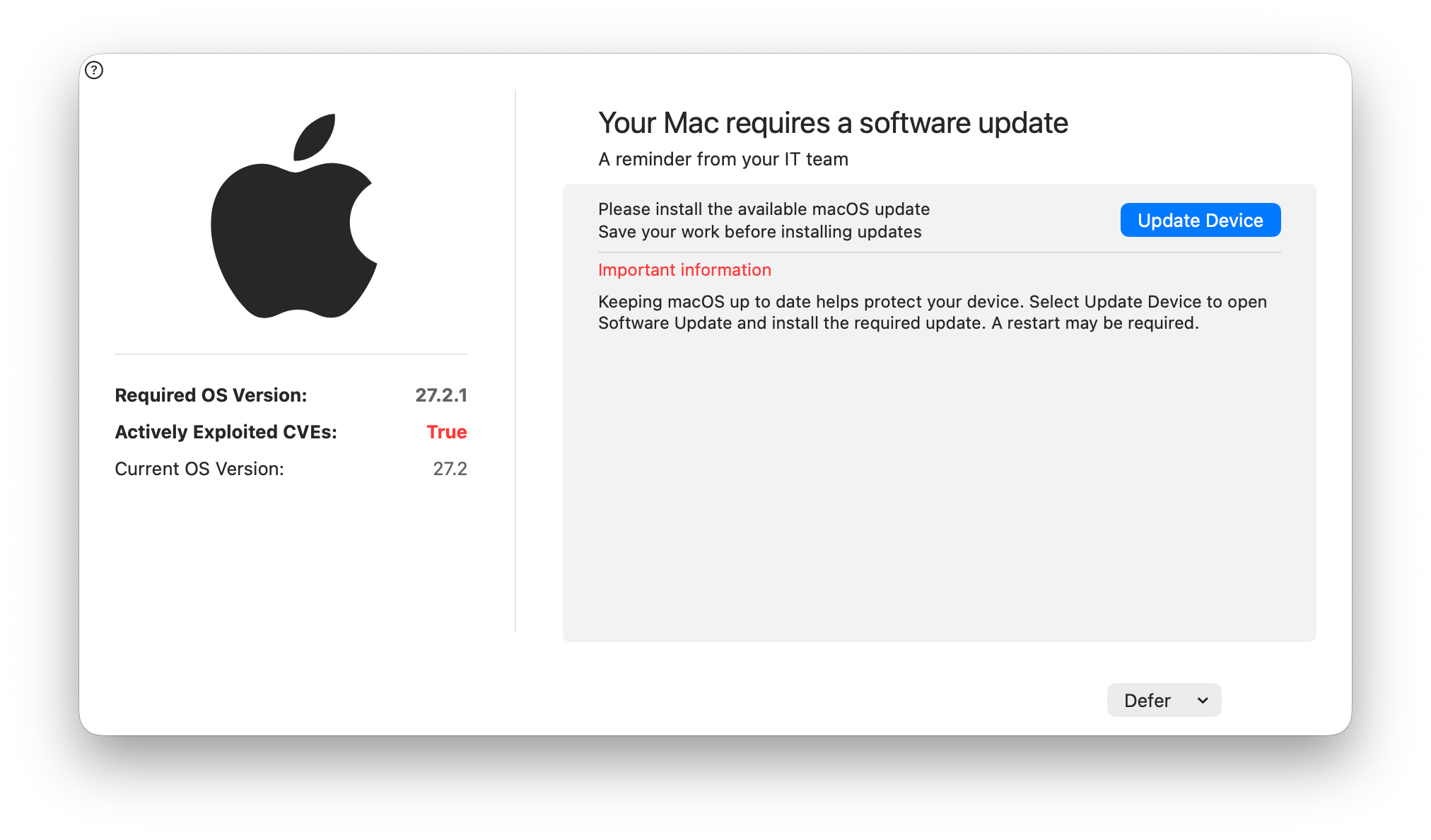
There is one important consideration when combining Nudge with DDM software-update deferrals. Nudge uses release information from SOFA and its own configured SLA values to determine when users should be reminded about an update, but it doesn’t automatically read the installation deadlines configured through Microsoft Intune.
This means that the date calculated by Nudge can be different from the enforcement date configured in DDM. In addition, Nudge may already know about a newly released minor macOS update while that update is still deferred by our Intune configuration. For example, Ring 3 devices have a seven-day minor-update deferral, so a reminder shown before the update becomes available could lead users to Software Update without providing them with anything they can actually install.
For that reason, I would configure Nudge conservatively and avoid presenting an independently calculated deadline as if it were the mandatory installation deadline enforced through DDM. I would also keep the aggressive reminder experience disabled and validate the reminder timing against the actual update availability on our managed devices.
Personally, I would start with Nudge in a limited pilot and evaluate whether the additional reminders improve voluntary update installation. If the native macOS notifications and DDM enforcement already provide the desired result, there may be little reason to introduce another application that needs to be deployed, updated and maintained.
Validating the configuration
One thing I always recommend when deploying device configuration policies is to verify the actual behaviour on the endpoint. Just because Microsoft Intune reports that a configuration policy was successfully delivered doesn’t necessarily mean that the device has already reached the desired state, particularly when we’re dealing with software updates.
An update can be known to Intune without being visible to the user, while a specific-version enforcement declaration can be assigned without the update having been installed. In addition, macOS might already be downloading or preparing an update while the installed operating system version remains unchanged. These are different states, and we need to understand which one we’re looking at before drawing conclusions.
Checking the installed operating system and available updates
The easiest way to verify the installed macOS version is to use sw_vers, which returns the operating system version and build number. To determine which updates macOS currently offers, we can use softwareupdate --list, while softwareupdate --list-full-installers provides information about available full macOS installers.
sw_vers
softwareupdate --list
softwareupdate --list-full-installers
The full-installer output can include a Deferred indicator, which helps determine whether macOS considers a particular installer subject to a deferral. However, this indicator doesn’t identify which individual Intune policy is responsible, so we still need to review the effective assignments when investigating unexpected update behaviour.
Reviewing software-update reporting in Intune
Microsoft Intune also provides software-update reporting for managed Apple devices, including information about the installed operating system version, the latest available update, pending installation state and related status information. This makes it possible to determine whether a device has received a targeted update and whether the installation process is progressing.
I would use these reports alongside the information available directly on the Mac. An enforcement policy being successfully delivered is useful information, but the installed operating system version is ultimately what confirms whether the required upgrade has been completed.
Microsoft describes the reporting capabilities in Software update reporting for Apple devices.
Reviewing effective assignments
When investigating unexpected software-update behaviour, I would also verify which configuration policies are actually assigned to the device, including its update-ring membership, assignment filters, exclusions and any active specific-version enforcement policy. This is particularly important when several policies configure different parts of the software-update experience.
After changing an assignment, make sure that the device has processed the updated management configuration before evaluating the result. The macOS Software Update interface may also require another update check before reflecting the changed state, so I wouldn’t immediately conclude that an assignment has failed simply because the first check doesn’t show the expected update.
Important considerations
Although this configuration provides more control over major macOS upgrades, there are some limitations that need to be considered when using it in production.
The first is Apple’s maximum major-update deferral of 90 days. This means that the global deferral cannot indefinitely prevent a new major operating system version from becoming available. Once the applicable period expires, devices can become eligible for that upgrade even if we haven’t explicitly released their deployment ring. Organizations that need to remain on an older major macOS version for a longer period must therefore evaluate additional supported controls rather than assume that a 90-day deferral provides permanent protection.
Another consideration is the target version used by our enforcement policies. When we approve a major macOS release, the version we eventually deploy may already be several maintenance releases newer than the original .0 version. I would review the approved target before every deployment wave, especially when Apple releases a new update during the rollout, and make sure that the selected target remains available throughout the planned enforcement period.
It’s also important to keep our temporary exclusions and enforcement assignments under control. Once a deployment wave has completed successfully, the devices should be removed from the major-upgrade exclusion group and the obsolete enforcement policies should be unassigned. Otherwise, devices may remain eligible for future major upgrades earlier than intended, or continue receiving enforcement declarations that are no longer relevant.
Finally, I would keep the permanently assigned policies as simple as possible. A shared configuration for common update behaviour, one global major-upgrade deferral and one minor/system update-ring policy per device are relatively easy to understand and maintain. The specific-version enforcement policies are then only introduced when we have approved an operating system version for deployment, keeping day-to-day administration separate from planned major upgrades.
Summary
Managing macOS updates through Microsoft Intune has become much more capable with Apple’s Declarative Device Management, but it’s important to understand what the different settings actually accomplish. In particular, we need to distinguish between making updates available, configuring automatic installation behaviour and enforcing the installation of a specific operating system version.
For minor and system updates, I prefer using three update rings that make updates available after one, three and seven days. This provides a short validation period while allowing security and reliability updates to become available relatively quickly. Where mandatory installation deadlines are required, we can complement these deferrals with specific-version enforcement policies targeting the appropriate maintenance release for each supported major macOS version.
For major operating system upgrades, I prefer a controlled deployment process. By configuring a global 90-day major-upgrade deferral and temporarily excluding approved deployment rings, we can decide which devices should receive a new major macOS version and when. DDM Specific Version enforcement then allows us to require the installation of the approved release by a defined deadline, without having to automatically deploy the latest major version to every managed Mac.
An important part of this approach is that we don’t necessarily deploy the initial .0 release of a new major operating system. If macOS 27 has been approved and version 27.2.1 is available and validated, we can target that version directly. This allows us to take advantage of maintenance updates released during our testing period without requiring devices to first install an older version.
Nudge can provide an additional reminder experience, although I would evaluate its value carefully alongside the notifications and enforcement capabilities already available through DDM. Whatever combination we choose, I would always validate the actual operating system version and installation status rather than relying exclusively on successful configuration delivery.
With this configuration, we have a manageable approach that balances security, validation time and control over major macOS upgrades, while keeping the number of permanently assigned policies relatively small. The result is a predictable update process that can be repeated whenever Apple releases a new major operating system version.
References
Apple documentation
- Deploying software updates using declarative management
- SoftwareUpdateSettingsDeferralsObject
- Install and enforce software updates for Apple devices
- AppleSeed for IT
Microsoft documentation
- Configure update policies for Apple devices
- Software updates planning guide for managed macOS devices
- Software update reporting for Apple devices
- Add an unmanaged macOS PKG app to Microsoft Intune
- Microsoft Purview Endpoint DLP changes in macOS 27